

Connector vs. Plugin
A connector gives Claude access to an external service through MCP. A plugin packages skills, commands, and optional connectors, agents, or hooks. A plugin can include a connector; you can use both together.
Claude supports plugins across chat, Cowork, and Claude Code, but component support varies. Tavily’s published plugin uses the CLI; the plugin instructions below cover Claude Code.
Connector
The Tavily connector is available for Claude Cowork, Claude Code, claude.ai, and Claude Desktop.Installation
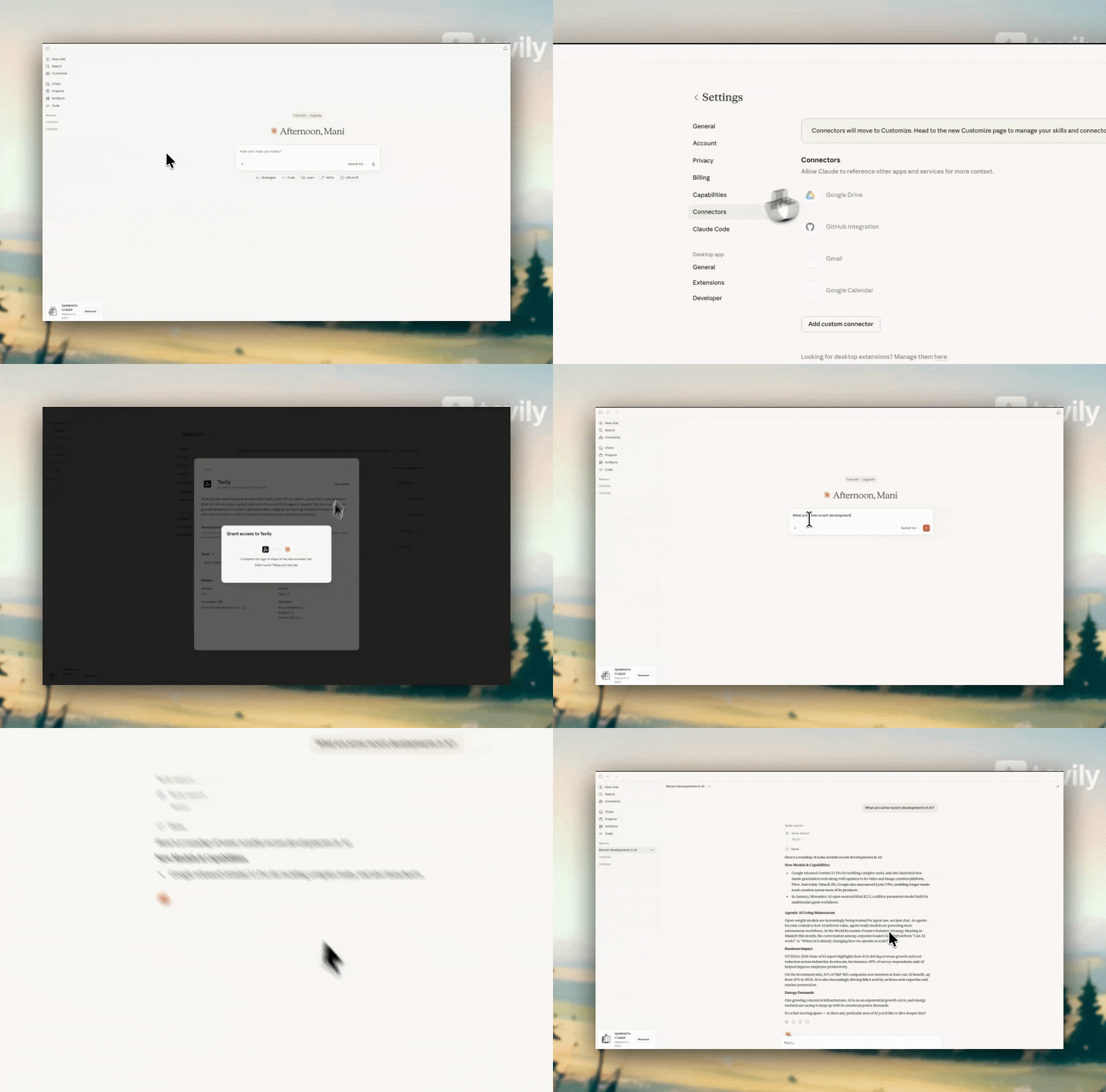
- Open Customize → Connectors and find Tavily.
- Click Connect and complete Tavily’s OAuth sign-in. On Team and Enterprise plans, an Owner must first make the connector available to the organization, as described below.
- Review Tool permissions. Choose Always allow, Needs approval, or Blocked for the tools you want to use.
- In a chat, open + → Connectors and enable Tavily. Try: “Use Tavily to find the latest AI news and cite the sources.”
Watch the connector setup
Watch the connector setup
/mcp to check availability, or follow the direct MCP setup.
Organization-wide access
On Claude Team and Enterprise plans, adding a connector for the organization makes it available to members. It does not, by itself, share the Owner’s Tavily sign-in. Choose how members authenticate: Use OAuth for individual Tavily sign-in, or a shared API key so members can use Tavily without their own Tavily accounts. Custom connectors support both options. A custom connector is simply one you add by URL. The directory connector uses OAuth; sharing an API key requires a custom connector. Each member still connects a custom connector once. Because Tavily supports OAuth, Claude can prompt for Tavily sign-in during that step even when the connector URL contains a working API key. For shared-key access without individual Tavily sign-in, explicitly select No sign-in. Claude’s custom connector dialog may offer these authentication options:
If these choices are missing: Some organizations have a one-screen dialog with optional OAuth client fields under Advanced settings. OAuth is still supported in that interface. The dialog and available options vary by organization; see Anthropic’s authentication settings.
Option 1: Each member signs in to Tavily
Option 1: Each member signs in to Tavily
The directory connector is the simplest way to use OAuth:
- As an Owner or Primary Owner, open Organization settings → Connectors.
- Select Browse connectors, find Tavily, and click Add to your team.
- Each member opens Customize → Connectors → Tavily → Connect and completes their own Tavily OAuth sign-in.
- Members enable Tavily in their conversations and run a test search.
https://mcp.tavily.com/mcp by URL and choose Sign in now when the authentication selector is available. Each member then clicks Connect and signs in to Tavily.To select a Tavily team key for OAuth requests, see API key selection for OAuth. Naming a key mcp_auth_default selects the key used after sign-in; it does not remove each member’s OAuth step.Tavily tools available
Example use cases
Ask Claude to use Tavily explicitly when you want these tools:Plugin
The official Tavily plugin, published by Tavily, packages CLI-backed skills for search, extraction, crawling, mapping, and research.Install in Claude Code
-
Install the Tavily CLI if it is not already available. For example, with
uv: -
Authenticate with browser sign-in, or supply
TAVILY_API_KEYin the environment where Claude Code runs:Search and Extract can also run without sign-in within keyless limits. Crawl, Map, and Research require authentication. -
In Claude Code, add Tavily’s marketplace and install the plugin:
-
Run
/reload-pluginsif prompted, or start a new Claude Code session. See Anthropic’s plugin installation guide.