

Introduction
Tavily is a verified community node in n8n. Use it as a regular node in any workflow, or attach it to an n8n AI Agent as a tool, so the agent decides when to search the web and writes its own queries. The Tavily node supports:- Search: search the web and get ranked results with content snippets
- Extract: get the content of one or more web pages
- Crawl: crawl a website from a starting URL and extract its pages
- Map: list the URLs on a website without extracting content
- Research: start a research task, then check its status to get the report
Prerequisites
- An n8n Cloud account or a self-hosted n8n instance. Installing community nodes requires the owner or an admin.
- A Tavily API key from the Tavily dashboard.
Set up Tavily in n8n
1
Install the Tavily node
In a workflow, click + to open the nodes panel, search for Tavily, and click Install.On self-hosted n8n, you can also go to Settings → Community nodes → Install and enter
@tavily/n8n-nodes-tavily.2
Add your Tavily credential
Add a Tavily node, open the credential dropdown, and choose Create new credential. Paste your Tavily API key and click Save.n8n tests the key when you save. The test doesn’t use any API credits.
3
Choose an operation
Pick Search, Extract, Crawl, Map, or Research, fill in the required field, and add any settings under Options. Run the node to check the result.
Use Tavily in an AI Agent
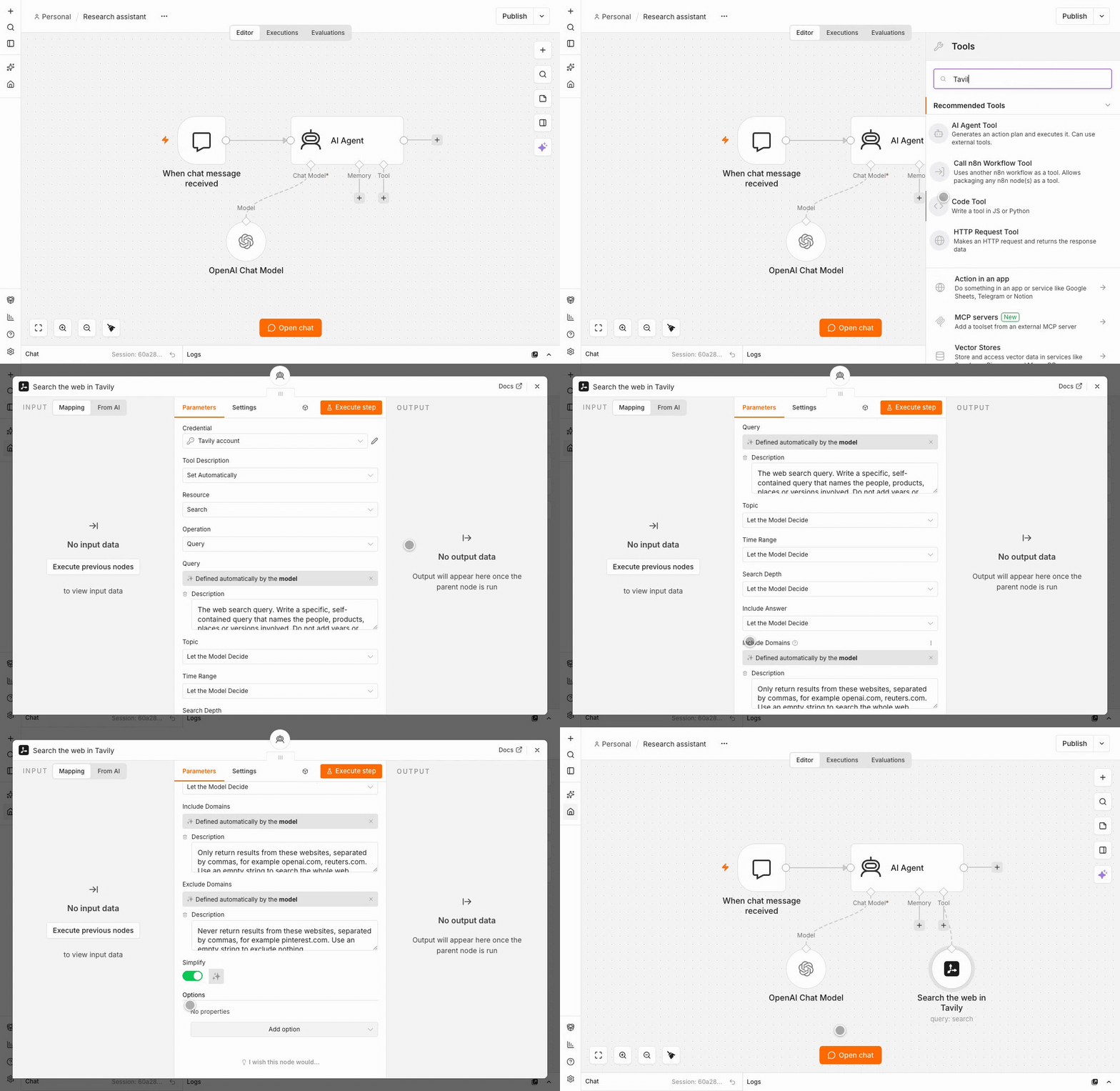
Attach Tavily to an AI Agent as a tool, and the agent searches the web or reads pages when a question needs current information.1
Create the agent
Add a When chat message received trigger and connect it to an AI Agent node. Attach a chat model, such as OpenAI or Anthropic, to the agent’s Chat Model input.
2
Add the Tavily tools
Click + under the agent’s Tool input, search for Tavily, and choose Search the web. Add Extract content from web pages the same way if the agent should be able to read full pages, for example to find prices or details that search snippets leave out.Select your Tavily credential on each tool.
3
Tell the agent today's date
Models don’t know the current date. Open the agent’s options and set the System Message, for example:
4
Chat with the agent
Click Open chat and ask a question that needs current information.
What the agent fills in
Search and Extract are ready for agents without extra setup. The model fills in these fields on each call:
To keep the agent’s context small, the Search tool returns 5 results by default and a simplified response that keeps only the fields an agent needs, such as the answer and each result’s title, URL, content, and score. To change the number of results, add Max Results under Options. To get the full API response, turn off Simplify.
To fix a setting instead of letting the model choose, pick a value from the dropdown in place of Let the Model Decide. The model then no longer gets that input. For example, set Search Depth to Basic to keep every search at 1 API credit. Advanced search and advanced extraction cost twice as many credits.
These agent features need version 0.6.0 or later of the Tavily node. To update an existing install, go to Settings → Community nodes and click Update on the Tavily node. Workflows created with earlier versions keep working as before. To use the new agent features in an existing workflow, remove the Tavily tool from the agent and add it again.
Use cases
- News monitoring: search recent news on a topic every morning and post a summary to Slack or email
- Lead enrichment: look up companies from your CRM and add current information to each record
- Competitive intelligence: track competitors’ announcements, pricing pages, and product updates
- Market research: follow industry trends and collect sources for a weekly report
- Content curation: collect and organize relevant articles for your team
- Job search automation: find new job postings that match your criteria and send them to your inbox
Example: automated job search
An AI Agent uses Tavily to find new “Software Engineering Intern” roles, summarizes them, and emails the results.1
Trigger
Add a Schedule Trigger that runs daily or weekly.
2
AI Agent with Tavily
Add an AI Agent with a chat model and the Tavily Search the web tool. In the agent’s prompt, ask it to find new Software Engineering Intern roles posted in the last week.
3
Summarize and send
The agent searches with Tavily and summarizes the roles. Connect an Email or Gmail node to send the summary to your inbox.
Best practices
- Control credit use: set Search Depth and Extract Depth to Basic on agent tools unless you need advanced results.
- Keep results focused: use Include Domains, Time Range, and Max Results to limit results to what the workflow needs.
- Leave raw content off for agents: Include Raw Content returns full page text for every result, which fills up the agent’s context quickly. Use the Extract tool for the specific pages the agent needs.
- Handle long result lists: use the Split Out node to process search results one at a time, and the Merge node to combine results from several searches.
- Handle errors: Tavily’s error messages explain what went wrong, such as an invalid API key, a rate limit, or a plan limit. Turn on On Error → Continue in the node settings to keep the workflow running when a single request fails.